
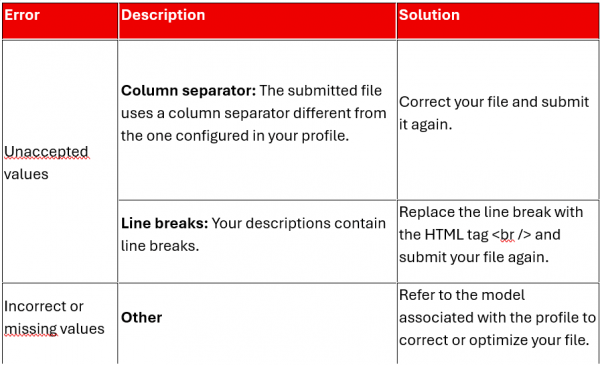
Your file may contain different types of errors:
To do this, click here and then on 3. Template files.*
Be aware that an optimal feed will allow you to maximize your sales potential and avoid cancellations due to outdated listings.
To optimize the success rate of your stock integration files, consult the error reports that are generated with every upload.
Error reports for manual file integrations or hosted URL (TXT/CSV)
The history of stock integration error reports is available from your account in the section Send my stock files.
You can download it to your computer by clicking on the link indicating the number of lines with errors in your file and use it to optimize your future uploads. These are available for 5 days. After this period, you will no longer be able to retrieve them.
Error reports for integrations performed via webservice
There are 2 webservices for retrieving errors:
- genericimportreport (XML)
- ImportReport (TXT ou CSV)
Find the documentation here.
It is recommended that you only send updates for existing listings in your catalog that require modification (price, quantity, etc.), while limiting the frequency of uploads to a maximum of 10 files per hour.
To do this, you can periodically perform an export of your inventory using the export webservice. This webservice also allows you to check competitor prices using the ‘pricing’ scope.
You can also use the listing webservice to consult our catalog and thus publish only listings on existing product pages using a barcode.
This method is very effective for optimizing your feeds in cases where your database does not have sufficient data for creating a product page.
