
You have several ways to customize your shipping fees, depending on the item’s weight and characteristics. It can be beneficial to customize them for each listing.
Take your import or feed file that you have already uploaded by going to your Rakuten account.
- Click on ‘Send my stock files‘ in the Inventory section.
- Select your update configuration between ‘Insert’ / ‘Update listings’.
- If necessary, specify the missing attributes, then upload your updated file.
If you wish to test the import success rate of your file, log in with your Rakuten username and password (or connection token available via your Rakuten account by clicking on ‘Tokens‘ in the ‘Account settings‘ section) on our dedicated web service.
Customize your shipping fees manually
To customize your shipping fees per listing, you can do so manually by filling out an Excel file in either XML format (generic import) or CSV format.
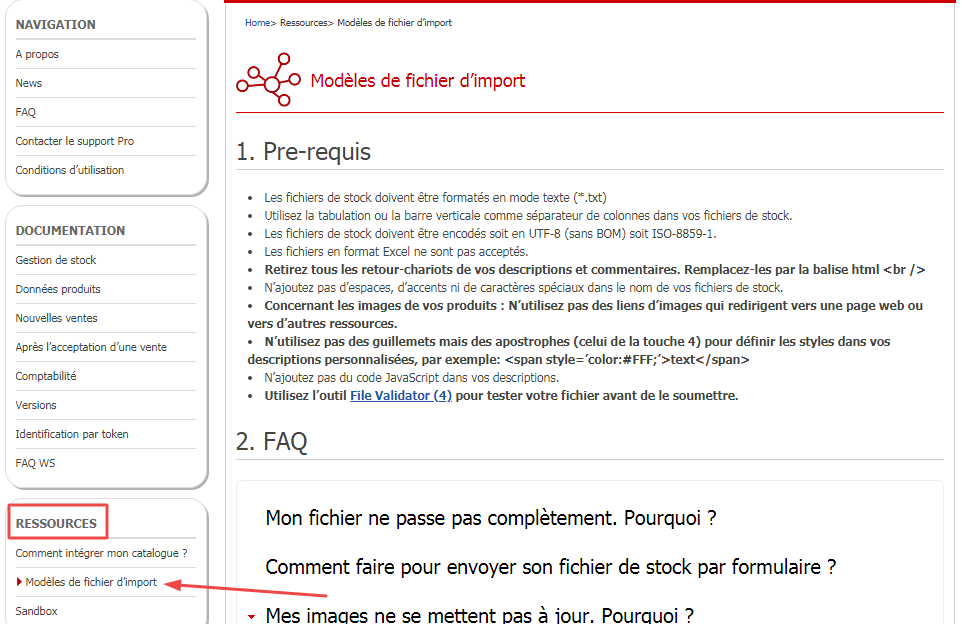
To download a template for these files, go to our Developer site and click on ‘Import file templates‘ in the RESOURCES section.
- In the third section, choose the product category and then the product type that applies to you.
- Once your file is filled out, go back to the Developer site and test your import file by connecting to our File-Validator web service with your Rakuten login and password (or connection token).
- Then click on ‘Test a file‘ and upload the file you just filled out by clicking on ‘Browse‘.
- In step 2, check the Header, Separator, and Encoding options.
- Next, select your file template from the proposed list and click on ‘Preview’.
- Check that all fields correspond correctly to the required columns, then click on ‘Analyze’.
Our web service will automatically analyze your file and generate a success rate. If it is sufficiently high, at least 80%, you will be able to submit your file by clicking on ‘Request configuration for this file’.
Your file will be processed by our technical team in a few minutes, and you will receive a confirmation email.
Customize your shipping fees with the help of your E-Commerce Consultant or Technical Support
If you would like your E-Commerce Consultant to assist you in customizing your shipping fees, click here.
You will need to specify two shipping fee amounts for each item: a ‘Leader‘ amount and a ‘Follower’ amount.
By default, an item is ‘Leader‘ if it is the only item in the order. In the case of a multi-product order, the item can be either ‘Leader‘ or ‘Follower‘.
- Leader: If there are several items in the cart and this item has the highest shipping fee, it will be considered the primary shipping fee for the order.
- Follower: If there are several items in the cart but this item does not have the highest shipping fee, its ‘Follower’ shipping fee is added to the total shipping cost of the cart.
The total shipping cost for the order will therefore be: The highest ‘Leader’ amount + the ‘Follower’ amounts of the other items.
Tip: If you do not wish to offer degressive shipping fees, you can set the ‘Follower’ amounts equal to the ‘Leader’ amounts for each item.
How does it work?
You can set a shipping fee based on the weight of the product sold, which consists of: Base amount + Amount assigned to the product’s weight bracket.
Here are several examples:
1) If you set the base at €10 and the amount for the “10 to 14.99kg” bracket at €5:
– 1 item weighing 12kg = €15 shipping fee: (€10 + €5) = €15
– 2 items weighing 12kg = €20 shipping fee: [(€10 + €5) + €5] = €20
2) If you set the base at €0 and the amount for the “10 to 14.99kg” bracket at €15:
– 1 item weighing 12kg = €15 shipping fee: (€0 + €15) = €15
– 2 items weighing 12kg = €30 shipping fee: [(€0 + €15) + €15] = €30
Option 1) encourages the buyer to order a second item.
Option 2) corresponds more to a situation where the different items are packed and shipped separately and are not eligible for degressive rates.
Information: The shipping fee amount is not calculated based on the total weight of the cart, but on the sum of the amounts assigned to each item’s weight bracket, to which the ‘base amount’ is added. You can customize the Standard, Tracked, Registered, and Express shipping methods in this way for each geographical zone: Metropolitan France, Overseas territories (DROM-COM), Europe, and International.
How do I set up this type of shipping fee?
You must fill out a shipping fee grid via an Excel file and save it in XML format (generic import) or CSV (be sure to add the weight of your items to be customized in grams in the last column of your file). Download the grid by clicking here.
All you need to do then is fill in the ‘Shipping amount’ and ‘Weight bracket configuration’ columns in this Excel file according to the different shipping regions.
Information: You can configure only a portion of your catalog and not the entire thing if you wish. If the weight is not specified for an item, it will be considered non-customized, and the standard Rakuten grid will apply.
To modify your personalized shipping fees by weight, please contact your E-Commerce Consultant to send them your updated shipping fee grid. To have them contact you, click here.
How does it work?
You can set a fixed amount for your entire catalog, which consists of: Base amount + Price per item.
Here are several examples:
1) If you set the shipping at €5 and the item at €2:
– 1 item = €7 shipping fee: (€5 + €2) = €7
– 2 items = €9 shipping fee: [(€5 + €2) + €2] = €9
2) If you set the base at €0 and the item at €5:
– 1 item = €5 shipping fee: (€5 + €0) = €5
– 2 items = €10 shipping fee: [(€5 + €0) + €5] = €10
3) If you set the base at €5 and the item at €0:
– 1 item = €5 shipping fee: (€5 + €0) = €5
– 2 items = €5 shipping fee: [(€5 + €0) + €0] = €5
Option 1) corresponds to degressive shipping fees.
Option 2) corresponds to a flat shipping fee of €5 per item.
Option 3) corresponds to a flat shipping fee of €5 per order (regardless of the number of items in the cart).
You can customize the Standard, Tracked, Registered, and Express shipping methods in this way for each geographical zone: Metropolitan France, Overseas territories (DROM-COM), Europe, and International.
How do I set up this type of shipping fee?
You must fill out a shipping fee grid via an Excel file and save it in XML format (generic import) or CSV. Download the grid by clicking here.
All you need to do then is fill in the ‘Shipping price‘ and ‘Price per item‘ columns in this Excel file according to the different shipping regions.
To modify your personalized shipping fees per item, please contact your E-Commerce Consultant to send them your updated shipping fee grid. To have them contact you, click here.
You can decide to offer free shipping. This will allow you to be more competitive, with a lower final cost for the buyer. Your listings will also be highlighted as products with free shipping. You will then have the “Free delivery” label displayed.
You have the option to set a minimum amount from which shipping will be free for your buyers. This can encourage consumers to add an extra item to their cart to take advantage of this offer.
If shipping is free starting from €0 and applies to all items in your shop, then the “Free delivery” label will appear on all your listings.
To set up free shipping, you must have it activated by your E-Commerce Consultant.
Once the option is activated, go to the “Preferences” section of your account and check the “I offer shipping” box in the “My shipping methods” section. Then, define a minimum amount for this service.
Information: Free shipping only applies to the cheapest shipping method available on a listing. For example: For an item costing €30, if you offer 3 shipping methods (Standard, Tracked, and Registered), shipping is only free for the Standard method.
