
In France, more than 153,000 active merchant sites are recorded, and this number grows by 9% each year. In this ultra-competitive environment, having a good product or a high-performing site is no longer enough. The real difference is played out elsewhere: in your ability to understand your customers, anticipate their expectations, and act quickly.
To build customer loyalty, you must listen to what they say—and above all, analyze what they feel. This is precisely the role of sentiment analysis. It allows you to decode the “voice of customer,” which corresponds to all the opinions and feelings expressed by your clients, and to transform this data into a sustainable competitive advantage.
The Rakuten E-Shop is a space entirely dedicated to your offers, allowing visitors to discover your brand universe.
With custom banners, storefront organization, and the ability to highlight offers and products according to key moments of the year, you remain in control of your brand.
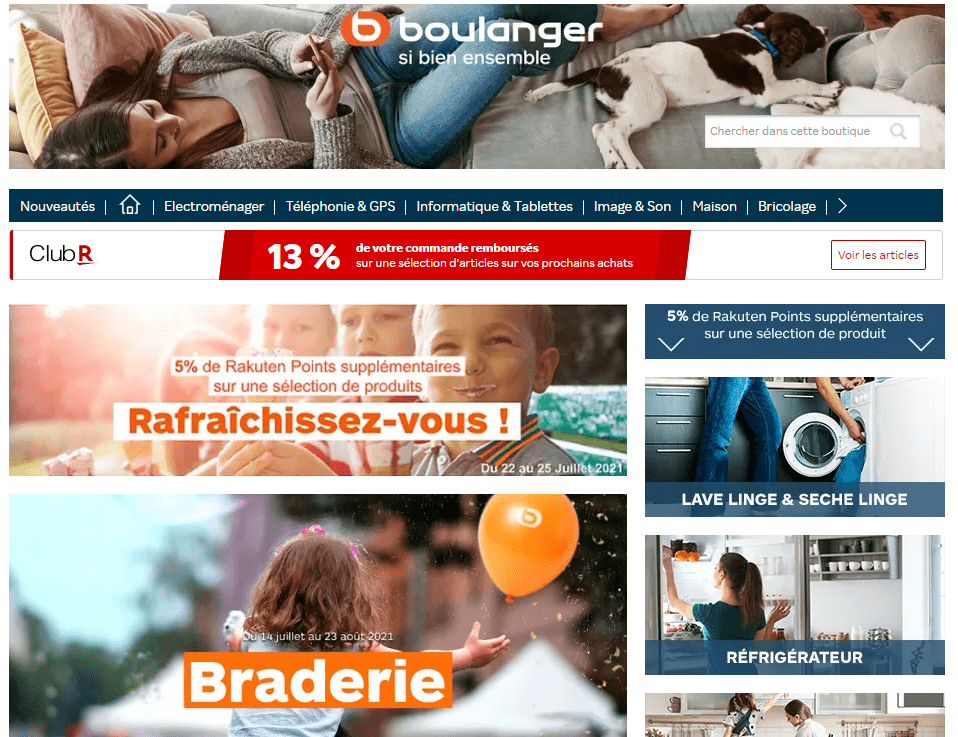
Your Rakuten E-Shop aims to replicate your brand universe and provides you with three key advantages:
- A storefront that reflects your image
Master your brand identity and customize your Rakuten E-Shop with your brand colors.
- A better customer experience
Immerse your buyers in your brand world and customize your E-Shop to the fullest for better conversion.
- Highlighting your best offers
Showcase your flagship products, new arrivals, and current offers to optimize your sales.
To access your E-Shop interface directly, click here and log in to the Merchant Center with your Rakuten username and password.
Your Rakuten E-Shop is the first impression you give to potential buyers on our platform. Here are some tips to customize it effectively:
- Include an ‘About Us’ section in your E-Shop and provide as much detail as possible. The more information you add about yourself, your brand, your products, and your guarantees, the more visitors will understand your brand universe and be inclined to shop in your online store.
- Create a selection of products using a ‘Top Sellers’ category. This will increase the visibility of your best products and boost their sales.
- Include a phone number on your Rakuten E-Shop. Buyers will appreciate being able to reach you quickly and easily if needed.
- Furthermore, don’t forget to add your logo! Your Rakuten E-Shop is your storefront, and your logo is an essential part of it. Please note that logos containing the ‘.com’ mention are not accepted.
- In addition to this, manage your buyers’ comments and ratings, which appear on your page, as well as your listings, ensuring they include photos and sufficiently detailed descriptions.
You have the option to display a custom banner on your page.
- Once logged into your E-Shop, click on Home Page.
- Select the Edit image option by clicking on the icon
 in the top right corner of the page.

- Choose OPTION 2: Image, then click on Choose an image (the image size must be 936×220 pixels maximum).
- Confirm your selection.
- Finally, do not forget to click on Publish my Super Shop at the bottom of the page.
- The banner will be validated within 24 hours.
For your information:
You cannot include your email address or URL in your banners. If any of this information is detected, your banner will not be approved.
When you are on your E-Shop homepage, hover your cursor over the menus just below your banner, then click on the icon titled Edit menu.

Select the E-Shop page you wish to modify. For example, if you want to edit the menus on your homepage, click on the drop-down menu and select Home.
Next, customize the order of the menus as you wish by dragging and dropping them into your desired locations using your cursor (also known as the ‘drag and drop’ system).
For example, if you want to place the ‘New Arrivals‘ section first, click on that menu and move it just below the ‘Home‘ menu.
When you are on the homepage of your Rakuten E-Shop, click on ‘Add a module‘ in the section of your choice. The button is located at the top right of each block on your page.
In the ‘Choose a module‘ section, scroll down to ‘HTML / free content‘ and click on ‘Add to my Super Shop.‘ A window will open for you to place the HTML version of your video.

Your video will then appear on your Rakuten E-Shop. You can then move it by dragging and dropping it to your chosen location.
- If your video is hosted on another platform, follow the same procedure by copying and pasting the code of the video to be embedded.
- If your video does not appear, contact your E-Commerce Consultant so they can assist you by clicking here.
YouTube Video
- If you wish to embed a YouTube video into your Rakuten E-Shop, go to the YouTube page of that video.
- Click on SHARE, then on Embed, and finally click on COPY at the bottom right.


- Return to the ‘HTML / free content’ window open on your E-Shop page, then ‘PASTE’ into the text editing section to insert the HTML version, and finish by clicking on Validate.
Dailymotion Video
- If you wish to embed a Dailymotion video into your Rakuten E-Shop, go to the Dailymotion page of that video.
- Click on the Share icon (
 ) at the bottom right of the video description.

- Then click on ‘Embed video‘ and select the entire code (either by clicking three times in a row on the code, or by clicking at the beginning of the code and selecting all of it) to copy it.
- Return to the ‘HTML / free content’ window open on your E-Shop page, then ‘PASTE’ into the text editing section to insert the HTML version, and finish by clicking on Validate.
Vimeo Video
- If you wish to embed a Vimeo video into your E-Shop, go to the Vimeo page of that video.
- Click on the Share icon (
 ) that appears in the top right corner when you hover your mouse over the video.

- Click once on the code in the ‘Embed‘ section to select it all, then ‘COPY’ this code.
- Return to the ‘HTML / free content’ window open on your E-Shop page, then ‘PASTE’ into the text editing section to insert the HTML version, and finish by clicking on Validate.
If needed, you can share access to your Rakuten E-Shop with an agency or a web designer without disclosing your Rakuten password.
To do this, Rakuten has implemented a token system to access your Rakuten E-Shop. This token will serve as the password specifically for visiting this page. You can then send the link to your online store (which you can find by clicking on ‘My E-Shop‘ in your Merchant Center), along with your username and this token, so that the agency or web designer can access it. This person will then be able to modify it freely, having the same access as you.
To obtain this token, follow these steps:
- Log in to your Rakuten account.
- Click on ‘Webservices Connection‘ by clicking on your username at the top right of your screen.
- Then click on ‘Generate a token‘ to obtain it and copy this code.
- Select the ‘Rakuten E-Shop‘ token.
- If you have already performed this operation, you will be able to reuse the same token for your future connections to the tool.
